
Release v935 -- April 24, 2026
We've added powerful new analysis, sorting, and visualization tools to Recon's 3D view. Every feature listed here is accessible from the sidebar buttons in the app -- no configuration needed. Load a project, and start exploring.
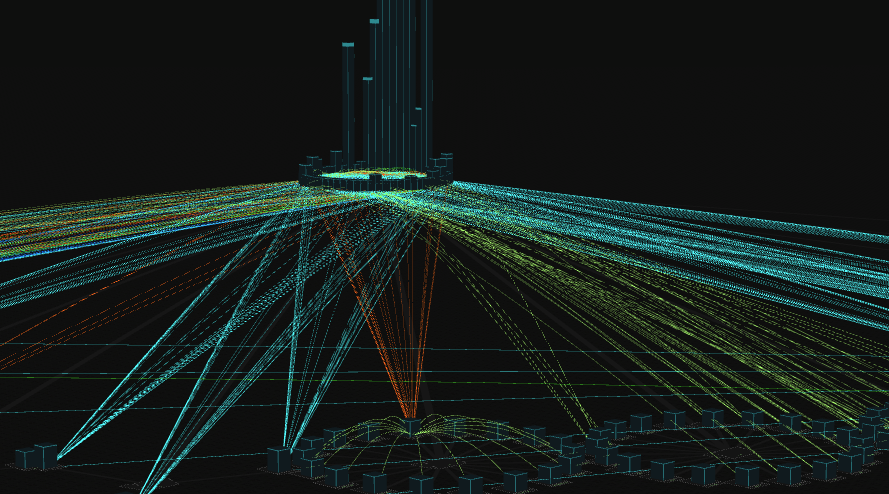
Click the button on the sidebar to instantly see how every file in your project references every other file. CodeWalker scans your source code for imports, includes, class usage, variable types, HTML attributes, CSS imports, and JavaScript require/import statements, then draws smooth arced lines between connected files.
Each line is color-coded by the type of file being referenced:
Blue -- links to HTML files
Red -- links to CSS/SCSS/LESS stylesheets
Green -- links to JavaScript/TypeScript files
Pink -- links to other file types (images, fonts, JSON, etc.)
White -- code-level references (class usage, variable types, includes)
The lines update in real time as you drag files around, so you can rearrange your layout and still see where every connection goes. Click again to clear them.
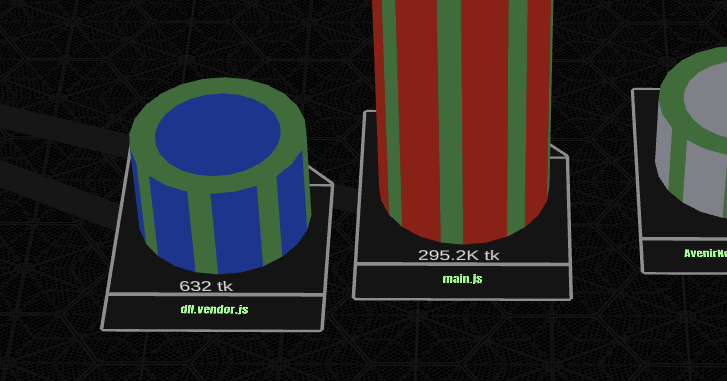
Click the button on the sidebar to see exactly how many AI tokens every file and folder in your project costs. CodeWalker uses a real BPE tokenizer to count tokens for text and code files, and estimates image tokens using the same formula the Claude API uses (width x height / 750).
Every file and folder gets a label showing its token count -- files show their own count, and folders show the sum of everything inside them. This rolls up all the way to the root, so you can instantly see which directories are consuming the most context window.
Binary files like .dll, .exe, and .mp3 are automatically excluded from the count so the numbers stay meaningful. Image files are estimated by their pixel dimensions, not their raw bytes.
This is invaluable when you're preparing code for an AI assistant and need to know what fits in the context window and what doesn't.
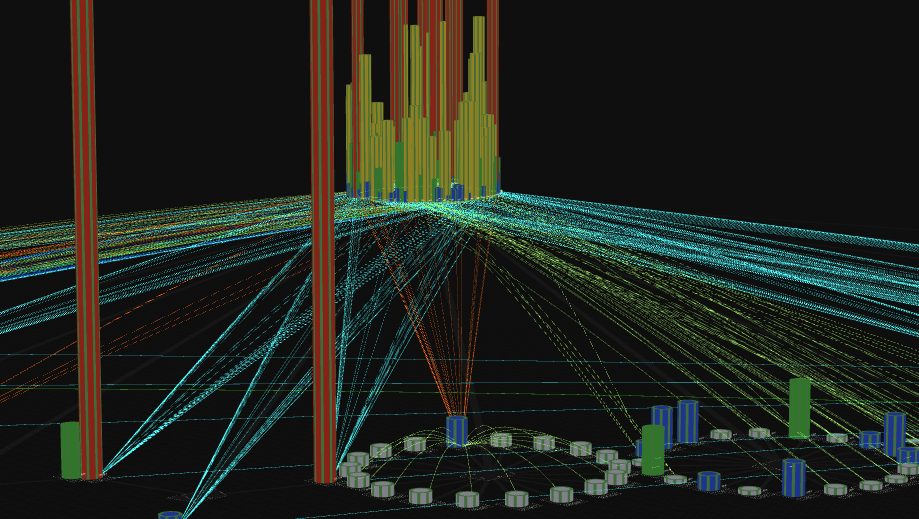
Click the button on the sidebar to replace every file icon with a 3D column whose height represents its token cost. The height is logarithmic -- a 100-token file is short, a 10,000-token file is tall, and a 100,000-token file towers over everything else.
Each tower is also color-coded by cost:
White -- 0 to 500 tokens (tiny files)
Blue -- 501 to 2,000 tokens
Green -- 2,001 to 5,000 tokens
Yellow -- 5,001 to 15,000 tokens
Red -- 15,001+ tokens (large files)
Between the height and the color, you can glance at your entire project and immediately spot the heaviest files. This makes it easy to decide what to include when assembling context for an AI, or to identify bloated files that might benefit from being split up.
Recon's sorting modes rearrange every file and folder in the 3D view into layouts that reveal different aspects of your codebase. Each mode has its own button on the sidebar under the section. After sorting, all reference lines and connections automatically update to follow the new positions.
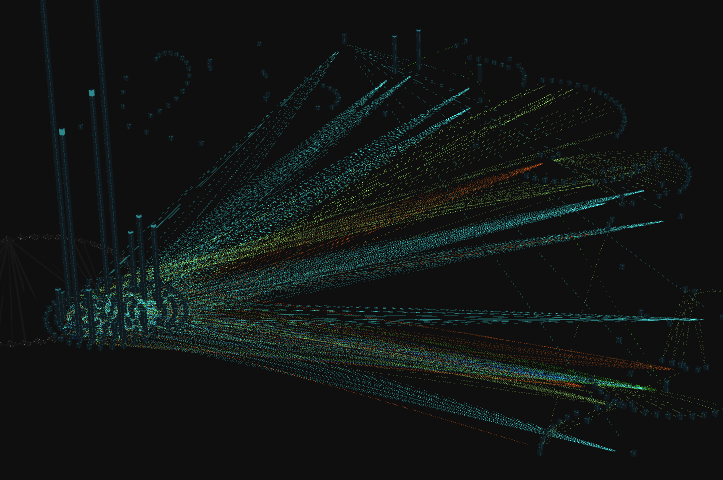
Groups files into clusters based on their import and reference connections. Files that reference each other end up together. Unconnected groups are separated visually so you can see the natural boundaries in your codebase.
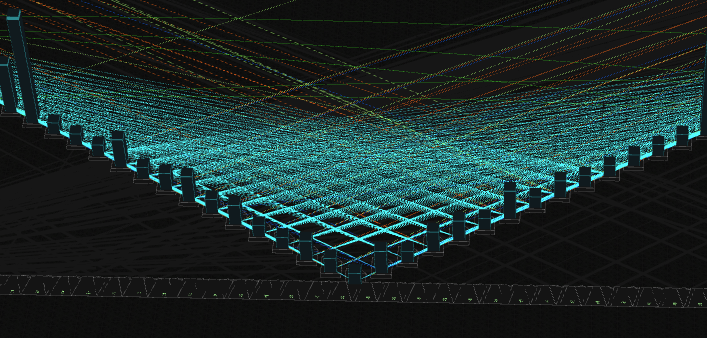
Shows which files are linked to the most. The most-referenced files sit at the center. Orphan files that nothing links to are clustered off to the side -- perfect for finding dead code or unused assets.
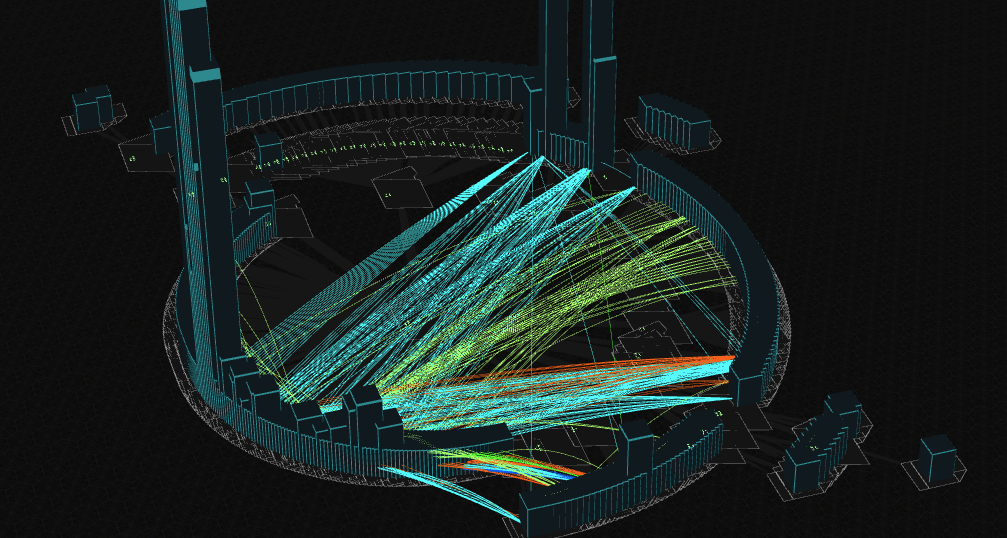
A radial layout where the root folder sits at the center and directories fan outward in concentric rings, with heavier subtrees getting wider wedges. Shows the overall shape and balance of your project structure at a glance.
Click in the SORTING section of the sidebar. CodeWalker analyzes every import, include, class reference, and variable type across your entire project, then groups files into connected clusters.
Files that reference each other -- directly or through a chain -- end up in the same cluster. Each cluster is laid out in a spiral, and the clusters themselves are arranged in hex rings with the biggest cluster at the center.
Folders are arranged in a large circle around the outside so you can still see which directories exist, with connecting lines running from each folder to its files inside the clusters.
This layout makes it immediately obvious which parts of your codebase are tightly coupled, which modules are independent, and whether you have any isolated files that nothing connects to.
Click in the SORTING section of the sidebar. This is a directed analysis -- it counts how many other files reference each file, not just whether a connection exists.
The most-referenced files appear at the center of a chevron layout, fanning outward to the least-referenced. Files with zero inbound references -- orphans that nothing in your project links to -- are pulled out into a separate cluster on the right side and colored orange.
Folders line up in a front row so you can see the directory structure alongside the ranking.
The color gradient runs from green (most inbound references) to yellow (fewest), making it easy to spot your project's most critical files at a glance. The orphan cluster is equally useful: those are files you might be able to remove, or files that need to be wired in.
For the most complete results, click first to run the full reference scan (including web references), then click . The inbound sort will use the reference data that's already been calculated.

Click a file in the 3D view to select it, then click the reachability sort button in the SORTING section of the sidebar. CodeWalker performs a breadth-first search from your selected file through the entire reference graph, then arranges every file by how many hops away it is.
Your selected file appears at the center, colored red. Files that directly reference it (or are referenced by it) form the first ring, colored green. The second ring contains files two hops away, and so on, with the color shifting from green to blue as distance increases.
Files that have no connection path to your selected file at all -- completely unreachable -- are pulled into a grey cluster off to the side.
This is powerful for impact analysis. Select a file you're about to refactor and instantly see everything it touches, how far the ripple goes, and what's completely isolated from it. The concentric ring layout makes the distance relationships immediately intuitive.
For the most complete graph, click first. The reachability sort will use the full reference data including HTML/CSS/JS web links.
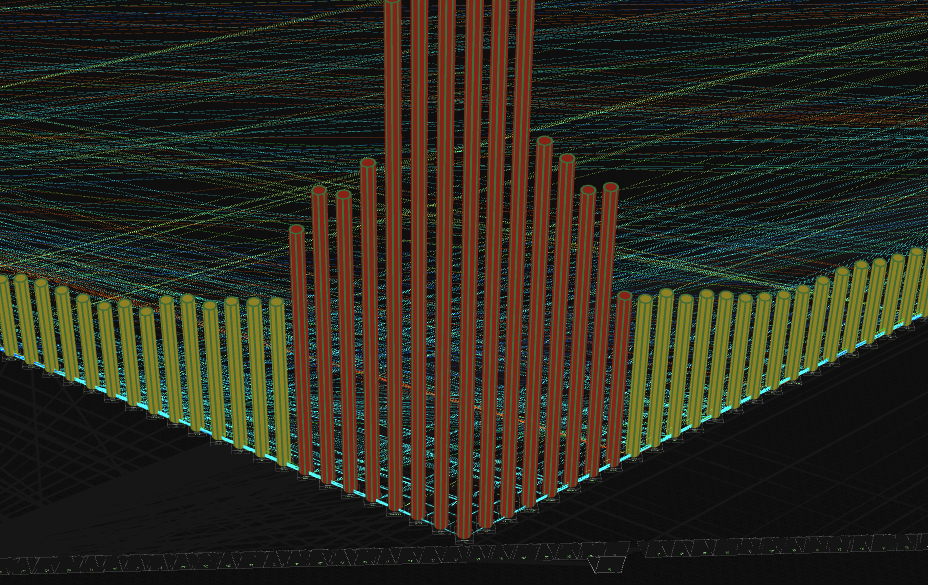
Click the button in the SORTING section of the sidebar. CodeWalker tokenizes every file in your project using a BPE tokenizer, then arranges them by cost.
Folders line up in a front row, sorted by their total token cost (heaviest folder on the left). Behind them, individual files are arranged in a chevron with the most expensive file at the center, fanning outward to the cheapest.
This sort combines the token counting from the Token Cost Overlay with a spatial layout, so you can see both the numbers and the relative scale at the same time. It's the fastest way to answer "which files are eating up my AI context window?"
Click in the SORTING section of the sidebar. The root folder moves to the center of the view, and every subdirectory and file fans outward in concentric rings.
Each directory gets an angular wedge proportional to the weight of its subtree -- directories with more files and deeper nesting get wider slices. Sub-folders recurse outward, each placed on the next ring within their parent's wedge. Individual files appear as leaf nodes on the same ring as their sibling folders.
The result is a radial map of your entire project structure. You can immediately see which parts of your codebase are deep and complex versus flat and simple, and how the overall weight is distributed across directories.
Connecting lines update after the sort, so if you turn on you'll see the reference arcs overlaid on the sunburst pattern.

Click in the SORTING section of the sidebar. Every folder gets its own row. Folder icons line up in a column on the left side, indented by depth in the hierarchy, and the files belonging to each folder stretch out to the right in a line.
Sub-folders appear as their own rows directly below their parent, indented one step deeper, so the hierarchy reads like an outline. This is the most structured, spreadsheet-like view of your project.
It's especially useful when you want to see exactly what's in each folder without any visual abstraction. Combined with the reference lines, you can see which rows have the most connections to other rows -- a clean way to identify cross-directory dependencies.

The original Recon layout is now available as a sort mode. Directories spread along the horizontal axis proportional to their subtree weight, with heavier directories taking up more space. Files cascade downward in a staircase pattern.
Use this to return to the familiar layout after experimenting with other sort modes, or as a neutral starting point before applying reference overlays.

Double-click any file in the 3D view to cycle through three display modes:
Box mode -- the default compact icon. Shows the file as a simple shape you can click, drag, and organize.
Disk tree mode -- expands the file into a radial tree of all its functions and code blocks. Each node sits on a circular disk, with child nodes fanning out around their parent. The heavier a function is (more lines of code, more nested children), the closer it sits to the center and the more space it takes up. This gives you an instant visual map of the code's internal structure.
Token stack mode -- replaces the file with a colored column representing its token cost. The height and color match the Token Towers feature (white for tiny files up to red for massive ones). This mode is useful when you want to see individual file costs without turning on towers for the entire project.
Double-click again to cycle to the next mode. The cycle goes: box, disk tree, token stack, and back to box.

We've reworked the camera controls in the 3D view to be more intuitive and eliminate conflicts between different mouse actions.
Left-click and drag on empty space to pan the camera across the ground plane. Left-click on a file or folder to select it, and drag to reposition it.
Alt + left-click drag to orbit the camera around your current focus point.
Ctrl/Cmd + left-click drag up and down to zoom the camera forward and backward.
Scroll wheel to zoom in and out.
WASD keys to fly around like an RTS game.
F key to focus the camera on the currently selected object.
G key to frame all visible objects in the scene -- files, folders, and expanded trees.
The system now automatically detects whether you clicked on a file, folder, or empty space, and picks the right action. Panning, orbiting, zooming, and file dragging no longer interfere with each other.

CSS and JSON files now appear as full file nodes in the 3D view. Previously, these files were invisible to the reference overlay -- if your HTML linked to a stylesheet, there was nothing to draw a line to.
Now, when you click , you'll see red arcs connecting your HTML files to their CSS stylesheets, and pink arcs connecting JavaScript files to their JSON config files. Every file that your code actually references is now visible and connected.
All of these features are included in every edition of CodeWalker. Load a project and start clicking buttons.